Example: convert an AI draft into an editable report
Export the saved ChatGPT conversation to Word, keep the useful analysis, replace chat-style transitions with report headings, and use comments or tracked changes during review.
AI Studio export workflow
Save AI Studio conversations as Word with Be Mimos. Capture chats locally, search your history, and export when you need a clean archive.
Product screenshot
A real product screenshot gives search visitors and AI answer engines visual proof that the page is describing an actual workflow, not generic export advice.
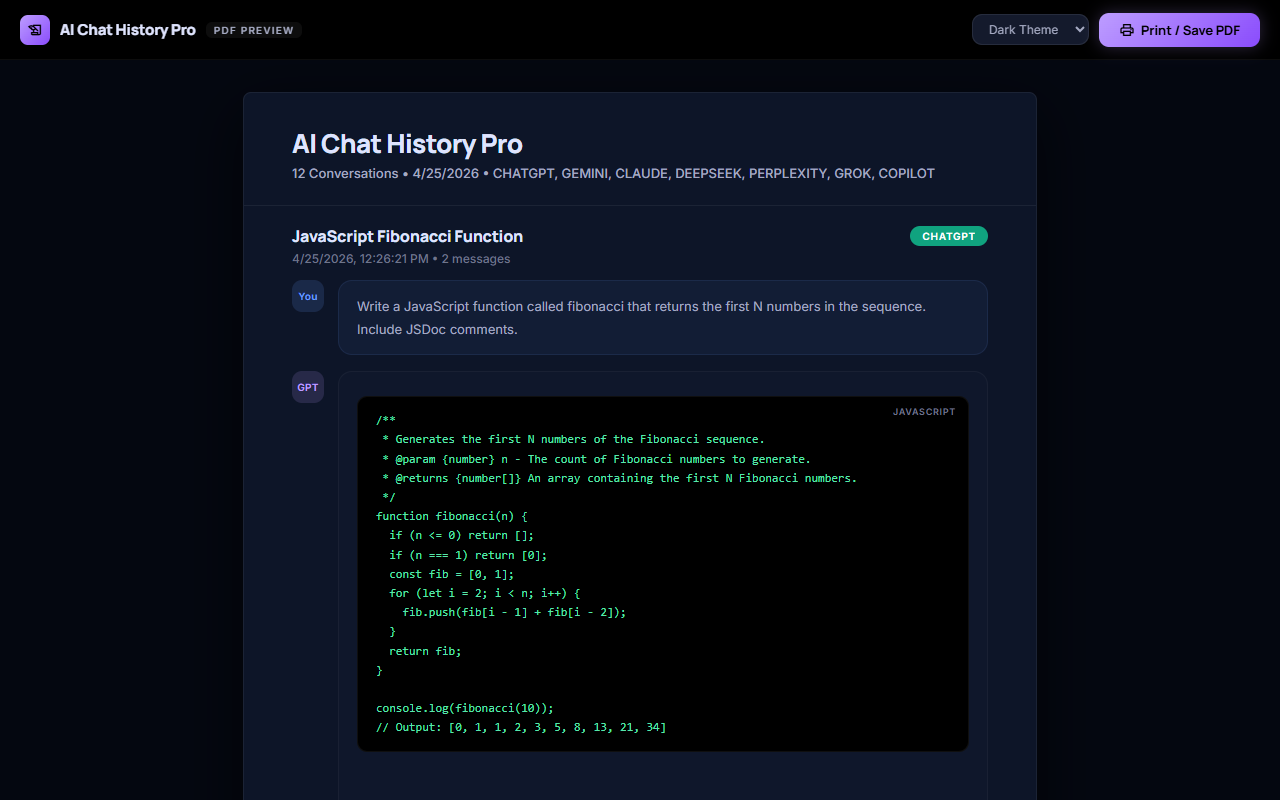
This page walks through exporting AI Studio conversations to Word specifically: when to reach for this format instead of another one, the exact steps involved, and what it looks like once you have it. Further down, you will also find every other platform Be Mimos captures and every other format you can export to, so you are not locked into a single combination once you start saving conversations.
Word decision guide
Word or DOCX is useful when the conversation is only the starting point and the next step is editing, commenting, rewriting, or combining the answer with an existing document.
This page focuses on Word for AI Studio specifically, so the decision guide below is about when to reach for this format rather than a different one — not whether AI Studio itself is worth saving conversations from.
Export the saved ChatGPT conversation to Word, keep the useful analysis, replace chat-style transitions with report headings, and use comments or tracked changes during review.
This page is generated from the product fact registry, so it stays tied to supported providers, supported formats, and privacy guardrails.
The goal is not just to download a file once. It is to keep a searchable, reusable memory layer for your AI work, where Word export is one output option among several rather than the only way to get value from a saved conversation.
Chat content stays local-first and is not uploaded to Be Mimos servers. That means the export step is just reformatting a copy you already have, not a new upload to a third-party service.
Find the saved conversation from your AI history before choosing DOCX -- useful here for editing an ai draft into a report or proposal -- instead of scrolling back through the original chat to locate it.
A Redact toggle can apply PII redaction tags across selected export formats. Review the redacted output before sharing it externally, the same way you would review any exported document.
Once a conversation is saved, switching from Word to a different export format later does not require redoing any of the original work — the saved copy stays in your history and can be re-exported on demand.
The same local-first capture and export workflow described above runs on every supported platform, not just the one this page is about.
conversations are captured and saved automatically, ready for search or export whenever you need them.
chats are saved the moment you have them, with export available whenever you go looking for the conversation again.
every conversation is stored locally as it happens, so export is one click away instead of a copy-paste job.
conversations are captured and saved automatically, ready for search or export whenever you need them.
chats are saved the moment you have them, with export available whenever you go looking for the conversation again.
every conversation is stored locally as it happens, so export is one click away instead of a copy-paste job.
conversations are captured and saved automatically, ready for search or export whenever you need them.
chats are saved the moment you have them, with export available whenever you go looking for the conversation again.
every conversation is stored locally as it happens, so research archive is one click away instead of a copy-paste job.
conversations are captured and saved automatically, ready for search or export whenever you need them.
chats are saved the moment you have them, with export available whenever you go looking for the conversation again.
A saved conversation is not locked to one export format. Here is what each of the other supported formats is actually good for.
Markdown is the practical choice when the conversation needs to remain readable as plain text while preserving headings, lists, links, and code-friendly structure.
PDF is the strongest fit for a stable reading copy that can be shared, printed, attached to a record, or reviewed without requiring the recipient to edit the conversation.
HTML is useful when the exported conversation should be opened in a browser, inspected as a web document, or used as the starting point for a private knowledge page.
JSON is the format to consider when the conversation must be handled as structured data for scripts, analysis, backup inspection, migration, or a custom processing workflow.
CSV is the right choice when the value of a conversation is in its structured, row-by-row data — not its prose — and the destination is a spreadsheet or a data pipeline rather than a document.
XLSX (Excel) is CSV's richer sibling — useful when the same structured, row-based conversation data needs real spreadsheet features like multiple sheets, column formatting, or formulas, not just raw values.
ZIP export is the practical choice when you need to move more than one conversation, or a conversation plus its attachments, in a single download instead of exporting each item individually.
Image export turns a conversation (or a specific answer) into a visual snapshot — the right choice when the goal is sharing something to look at, not a file to edit or reprocess.
Exporting to Google Docs is the right move when the next step is collaborative editing, commenting, or sharing inside Google Workspace, rather than working from a local file.
Plain text strips everything down to the words themselves — the most universal, dependency-free format for when you just need the content, with no formatting, markup, or file-type compatibility concerns.
ShareGPT format is a structured conversation-turn export built for fine-tuning or evaluating conversational AI models — not for reading, but for feeding into a training or evaluation pipeline.
Alpaca format restructures a conversation into instruction/input/output triples — the standard shape used for instruction-tuning AI models, not for casual reading.
Tavern format packages a conversation as a character-card-style chat log, built for AI roleplay and companion-chat applications rather than general document use.
Ooba format targets Oobabooga's text-generation-webui — useful when you're running or fine-tuning models locally and want a saved conversation available as chat history inside that specific tool.
Start with the format you need now, then keep the same saved conversation available for other workflows.
Be Mimos supports saved AI conversation exports to Word. Use it with supported AI Studio conversations captured by the extension.
No. The public privacy positioning for generated pages is local-first: chat content is not uploaded to Be Mimos servers.
Yes. The product fact registry includes PDF, DOCX, Markdown, HTML, JSON, CSV, XLSX, ZIP, image, Google Docs, and ML training formats — see the full list below.
A DOCX export gives you a document-oriented starting point for editing and review. It also keeps the saved conversation available separately, so the source and the edited deliverable do not have to become the same file.
Yes. Review headings, lists, tables, code, equations, and images in the word processor you plan to use because rendering can vary between document applications.
Available plans: Free, Pro Monthly (4.99), Pro Yearly (39.99), Pro Lifetime (99.95). Word export works from the same saved-history foundation on every plan.
No. Users can search saved AI conversations across supported providers. Find it by keyword or date, then export straight from there.
Sources say there is no analytics on chat content and no data mining of conversations.
Sources say there is no advertising tracking and no third-party advertising cookies.